
Grima Dermatology & Surgery kindly asks that all new patients, whenever possible, create a patient portal account and complete the Initial Patient Registration Forms prior to their first appointment. These forms include digital consent forms, medical history, and preferred pharmacy information. Completing them in advance helps streamline your check-in and save time during your visit.
You will receive a patient portal link via email with detailed instructions before your appointment.
If you do not have access to a computer, please contact our office for assistance.
How to Create and Update Your Patient Portal Account
Why have I received an email from Sadio?
You have received this email because you provided your email address to your dermatologist’s office and they would like to verify that the email is correct and invite you to fill out your medical information online prior to your visit.
What do I do once I receive an email to sign up for Sadio?
1. If an email address was provided to your dermatologist’s office, you will receive an email from noreply@ezderm.com that contains a link to verify your email and create an account on Sadio, the patient portal. Once the link has been opened, the email address will be verified so you will receive appointment reminders in the future.
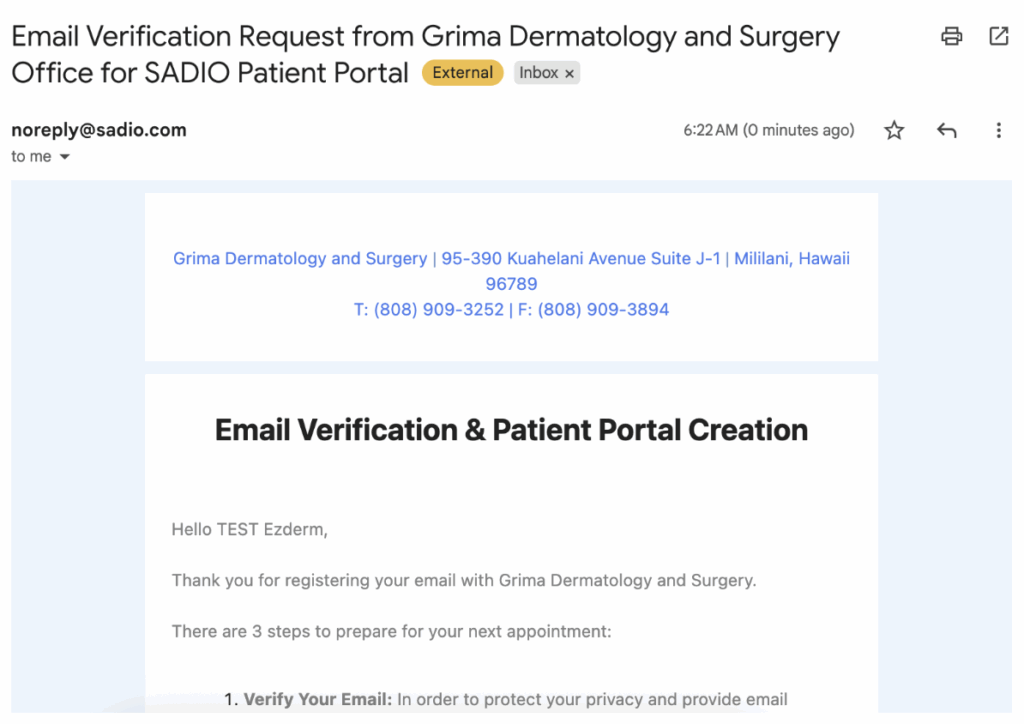
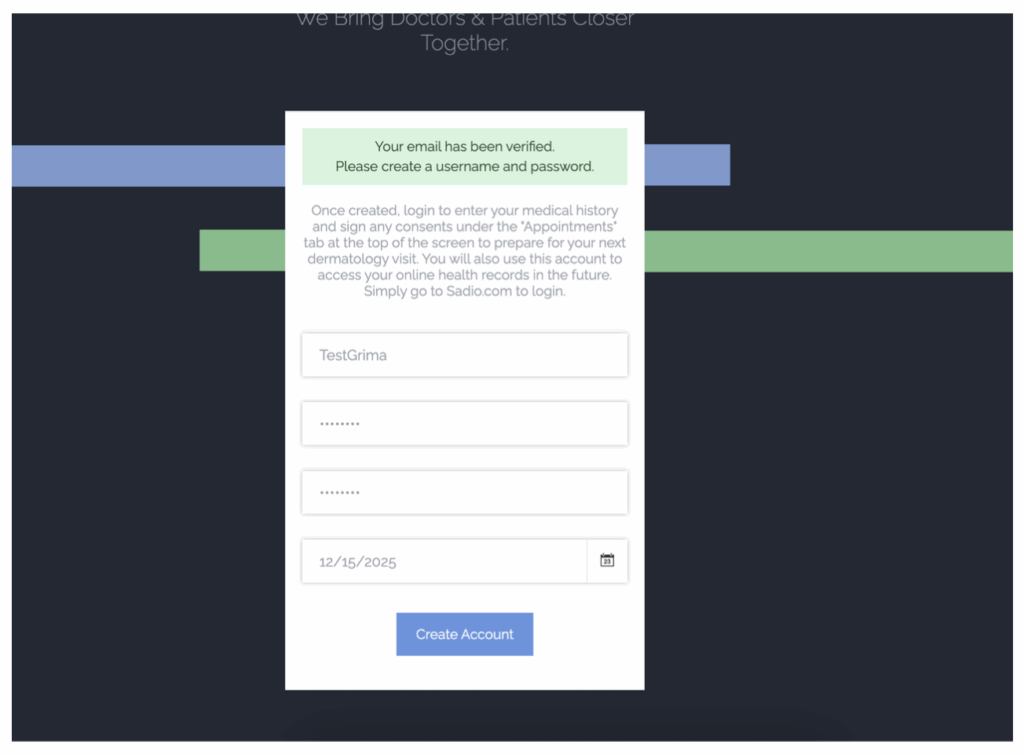
2. You will be prompted to create a username and password and to enter your date of birth. After completing this step, log in using the username and password you created.
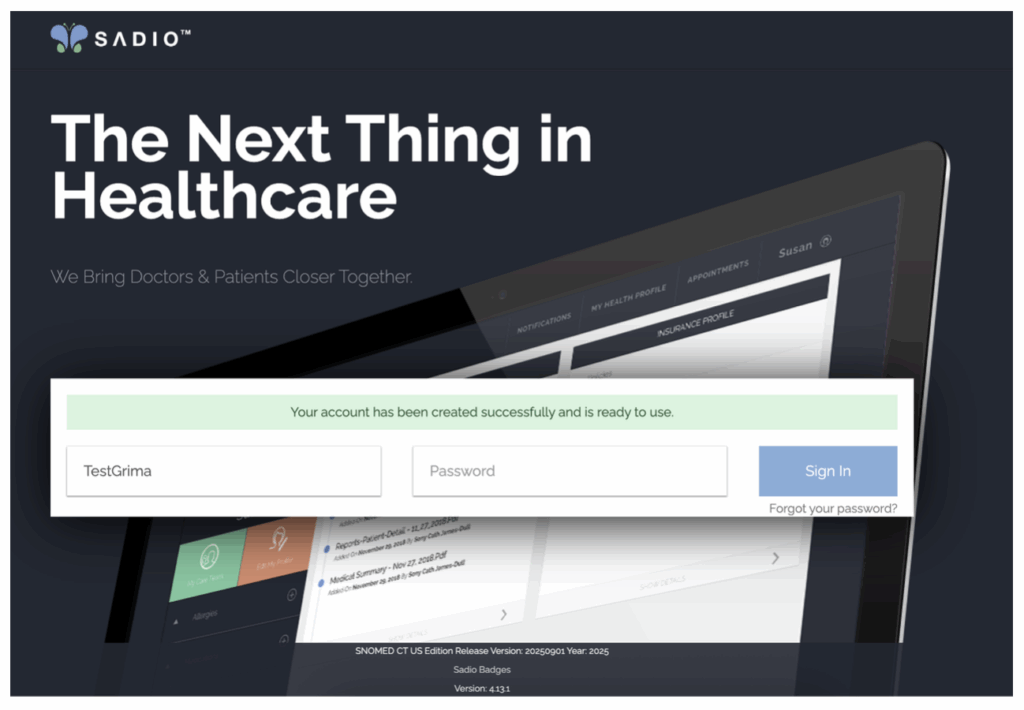
Note: If you forget your password, click “Forgot your Password?” and enter your username. If you do not remember your username, please contact your doctor’s office for assistance—they can provide it to you.
3. Once you have logged into your Sadio account, you will be prompted to answer questions regarding the following:
- Basic Information
- Allergies
- Medications
- Past Medical History
- Family History
- Surgical History
- Social History
4. After completing all required sections, a prompt will appear asking you to enter your preferred pharmacy. You may choose to enter this information at that time by clicking OK, or you may select the option to complete it later.
5. If you choose to enter your preferred pharmacy immediately, a map will appear based on the address you previously entered, displaying nearby pharmacies. You may also search for a specific pharmacy using the search bar above the map.
6. You will then be returned to the main dashboard. From this screen, you can view any documents shared with you by your doctor’s office as well as your Insurance Profile. Using the menu on the left side of the screen, you may:
- Edit your personal profile
- Add providers who are part of your care team
- Update allergies, medications, and past medical, family, and surgical history
- Review your prescription history
7. By clicking the Appointments tab at the top of the screen, you can view all upcoming appointments, any related unsigned consent forms, and counseling notes from past visits.
8. Signing Consents
To review and sign a consent form, click on the consent name (shown in blue). You will be taken to a screen where you can review the document and sign by tapping on the signature field and writing your name. Once completed, click Save. The consent will then be removed from the unsigned list.
Please note: consent forms cannot be signed from a mobile device. They can be signed from a computer or tablet.
If you have any additional questions, please contact our office for assistance.